FROM OUR EXAMPLE FILM
Protect the moment the story turns.
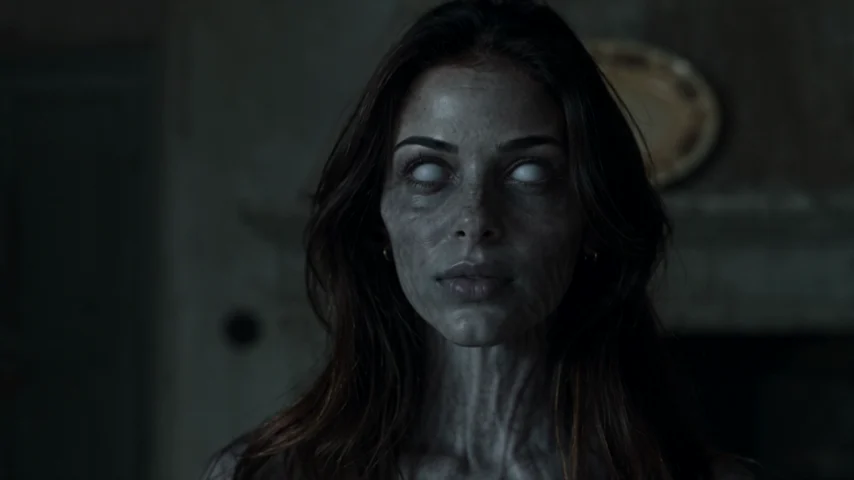 THE ENCOUNTER
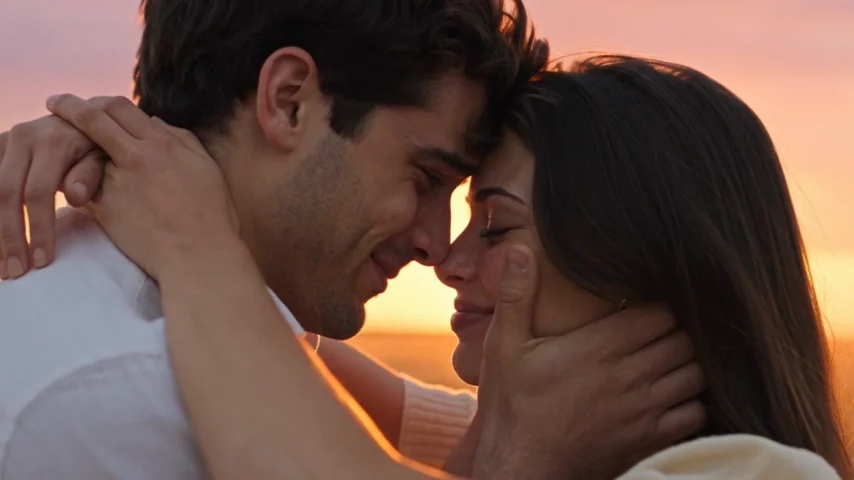 THE MEMORY
Keep the infected face readable in the opening and both faces visible in the final embrace. Watch the movement between these moments before deciding on your crop or caption position. From the AI Zombie example film. Your faces, motion and timing can differ.
Keep an original before you start editing
Download the MP4 from My videos and save an untouched copy. Finished videos remain available for 30 days unless deleted sooner. Editing a local copy lets you try a trim without losing the source. Replaying or downloading an existing video does not use another credit.
Watch once without pausing. Can you follow who has turned, who recognizes them and why the scene changes? Then check the faces and hands. Fixing a caption or choosing music comes after deciding that the visual story is usable.
If a face becomes a different person or the embrace has distorted anatomy, export settings will not repair it. Keep the video ID for a support review, or decide whether a new paid generation is worthwhile before polishing the clip.
Use the contact-frame review checklistKeep both people inside the vertical composition
For a new social-first film, choose 9:16 before generating. When editing, use a project with the same orientation. A landscape source can be cropped, but a narrow crop may hide one person during the approach even when the opening close-up looks good.
Watch every part of the clip after changing the crop. Keep enough room for the hands and the movement into contact. Avoid stretching the image to fill a frame; that changes the faces and body proportions.
Use the destination app's post preview to check the cover and any interface overlap. There is no single fixed safe area that this page can promise for every device or post layout. Move the caption if the preview obscures a face or the embrace.
- Check the opening, approach, contact and final memory after cropping.
- Keep the original aspect ratio unless a crop improves every important shot.
- Choose a cover that shows the relationship clearly.
- Preview with the caption in the app where you will share it.
Trim around the action, not an arbitrary timestamp
For AI zombie love story Reels editing, the key trim is usually near the approach or scene change. Remove a pause only if the viewer still has time to understand the recognition and choice. Cutting those gestures too tightly can leave a monster reveal followed by an unexplained hug.
At the transition, compare the last cold frame and first warm frame. A small trim can help if the poses are already compatible. A long fade changes the effect and does not fix people moving in opposite directions.
Leave the memory enough time to resolve. A final shared expression can carry more meaning than an extra dramatic effect. Generated shot timing varies; judge the delivered action rather than forcing the scene change onto a promised second.
Balance the soundtrack before adding a caption
The generated video already includes music and ambient sound. Listen with headphones through the scene change. If you add another track, lower or mute the original music where needed rather than leaving two songs competing at full volume.
Use music you are allowed to use for the intended post. Check the destination platform's current rules and the track's availability for your account; this guide does not promise that one song is cleared everywhere.
Keep the caption short enough to read without missing the embrace. An original line such as “I'd still know you” or “A memory worth keeping” can support the scene. Place it away from faces and hands, and make clear that the film is AI-generated.
Export once, then watch the actual file
Export with the same frame shape as your project. Raising the resolution does not recover missing source detail or fix likeness. Avoid repeatedly downloading and re-exporting the same edited copy; return to the original when trying a different edit.
Open the exported MP4 and watch it from start to finish. Check for silent sections, abrupt audio changes, clipped captions and unintended black frames. Then use the platform's preview before publishing, and check that the other person is comfortable with the final portrayal.
Questions about your Reels edit
Does AI Zombie include a Reels timeline editor?
No. AI Zombie generates the prepared video and provides an MP4 download. Use your preferred editor or posting app for trims, captions and replacement music.
Do I need a special song for the story to work?
No. The recognition, embrace and memory carry the story, and the video includes sound. A different track is an optional finishing choice.
Can this finishing checklist also help with TikTok or Shorts?
Yes. Checking the faces, crop, contact and sound is useful for any vertical edit. Preview in each destination app because its overlays and posting controls may differ.
Will this edit guarantee that my Reel gets views?
No. A clearer edit helps viewers follow the story, but reach and engagement are not guaranteed.