PLAN AND FINISH
Zombie AI video editing prompt
Copy an original zombie AI video editing prompt for two adult reference photos. Plan character roles, the embrace-to-memory cut and a clear ending.
ONE MOVEMENT. A DIFFERENT MOMENT.
The scene changes at the embrace. The movement carries on. Create a two-photo story that connects a cold encounter to a happy memory, then check the continuity before sharing.
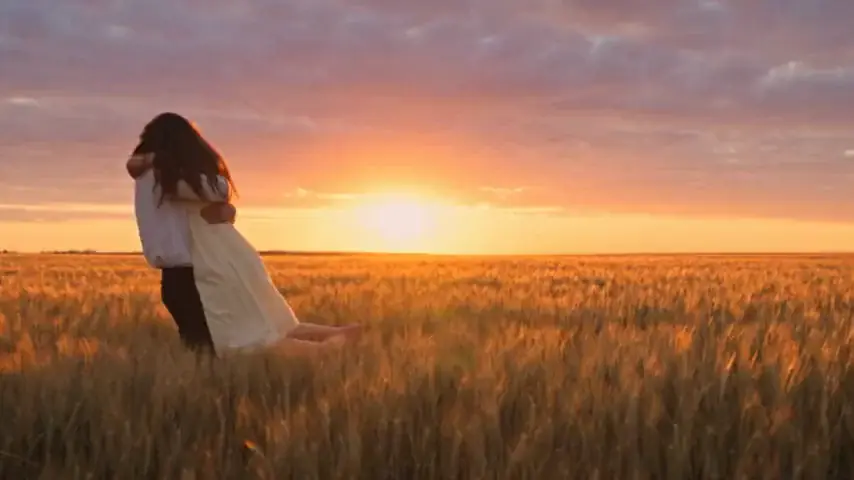
Add two adult portraits. The prepared story includes the approach, contact and memory transition.
JPG, PNG or WebP · Up to 8 MB per photo
Your photos stay private. You choose when to create.
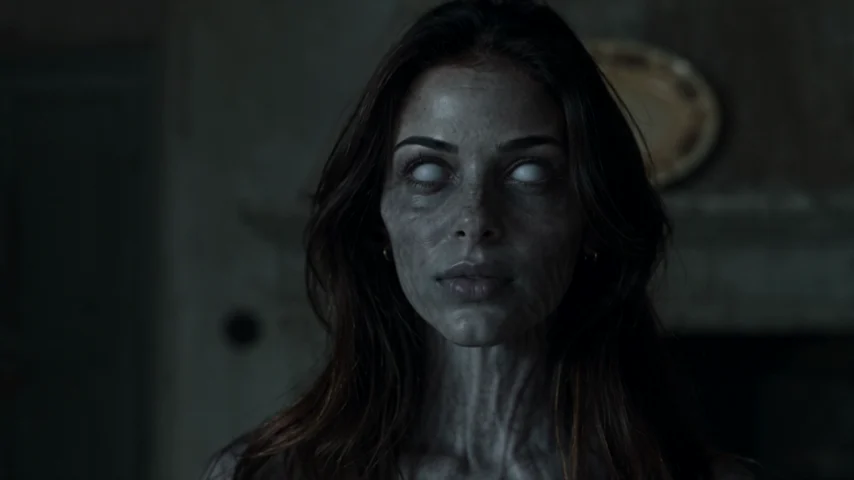
A familiar face in a changed world.
FROM OUR EXAMPLE FILM
THE ENCOUNTER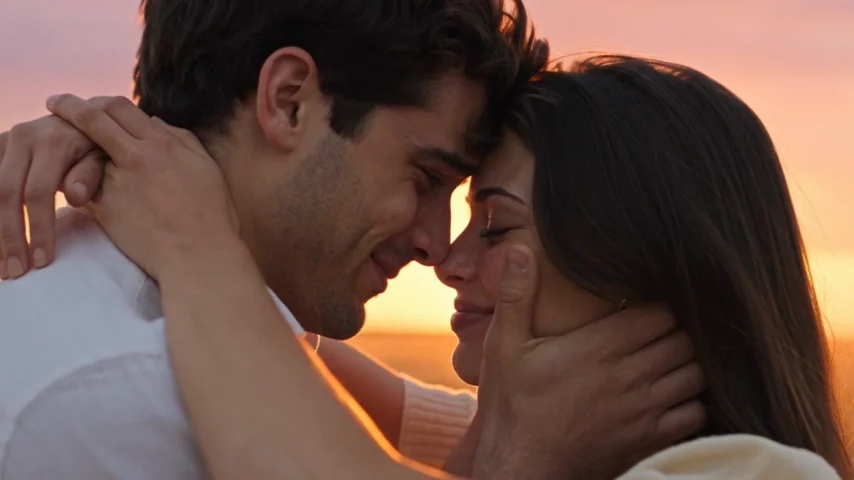 THE MEMORY
Compare the infected face with the same partner in the memory. Then play the sample to assess the approach and contact: these close-ups alone cannot show whether the movement matches. From the AI Zombie example film. Your faces, motion and timing can differ.
A match cut connects different shots through a shared visual element. In a zombie match cut AI video, that element is the movement toward contact. One person approaches the other in the cold scene, and the memory continues a related pose and direction as an embrace in warmer light.
For this story, the location and time change while the relationship stays readable. The healthy character in the memory is the same person who appeared infected in the opening. This is different from a face filter that changes a single portrait or a gradual transformation that happens in one place.
Our generator requests the contact-to-memory transition as part of its prepared narrative. It does not give you a timeline, an adjustable cut point or individual scene regeneration. Treat the transition as an intended effect and review what the AI actually delivers.
Watch at normal speed first. If the change feels confusing, pause immediately before and after it in your video player or editor. Compare the people rather than the scenery: the surroundings are supposed to change.
Follow one shoulder or hand across the boundary. If it suddenly changes side or height, the memory can feel like an unrelated event. Then watch the approach again to see whether the movement continues or restarts.
| Look at | A connected cut | A distracting change |
|---|---|---|
| Screen direction | The approaching person keeps moving the same way | The people switch sides unexpectedly |
| Contact pose | Arms meet at a similar height and angle | Hands jump or the embrace starts again |
| Camera distance | Both bodies occupy a comparable part of the frame | A sudden scale change hides the action |
| Identity | Both faces stay recognizable in the memory | A new-looking face interrupts the relationship |
Choose 9:16 when the destination is a vertical feed. Watch the whole body movement before adding a caption; the approach and hands need room even when the faces are centered. Choose 16:9 if you prefer a wider composition with more space around the two characters.
Generate in the orientation you intend to use. Cropping a finished wide video into a tall frame can hide one partner or remove the moment of contact. A sharper export cannot recover an action that has been cut out of the composition.
The output lasts 15 seconds and includes music and ambient sound. Shot timing can vary, so there is no guaranteed frame or exact second for the cut. Save the original MP4 before trying any trims.
Check the crop, sound and captions before postingA short trim may remove an idle frame or bring two compatible poses closer together. It cannot reliably repair a changed identity, an extra arm or two movements that never meet. Review those issues before spending time on music, filters or export settings.
For a manual workflow, describe the same boundary pose in both scene instructions: who stands on which side, which way the partner moves, how the arms meet and where the camera sits. Change one instruction at a time so that you can tell what helped.
In this generator, each new version uses another video credit. A confirmed task failure returns the credit; a completed clip with a creative or identity concern follows the support and refund policy. Keep the video ID when asking for a review.
Write the contact and memory instructionsNo. The generator supplies the story and transition instructions. You choose the reference portraits and frame orientation, while generated timing can vary.
No. Upload one ordinary portrait for each adult. The same two identities guide both scenes; you do not provide starting and ending frames.
A dissolve can soften a scene change, but it does not repair mismatched bodies or identities. Compare the source frames before deciding whether a trim helps.
This generator supports two adult people. It does not offer a dog, cat or other pet mode.
Cast your two people and create the prepared encounter-to-memory story.