Copy the zombie AI video editing prompt
This is an original teaching example for a compatible tool with two identity references. Adapt its settings to that tool. Copying it is free; generating a video is a separate step.
Free to copy. Video generation is separate.
FROM OUR EXAMPLE FILM
Describe the connection between the two scenes.
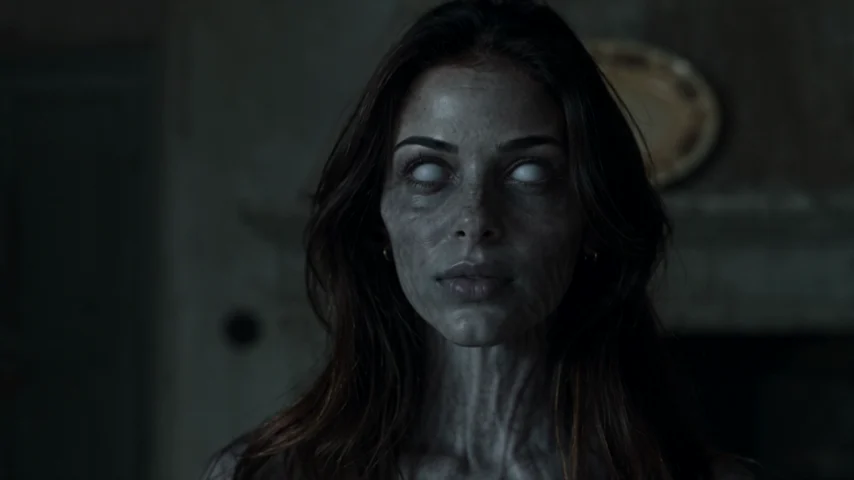 THE ENCOUNTER
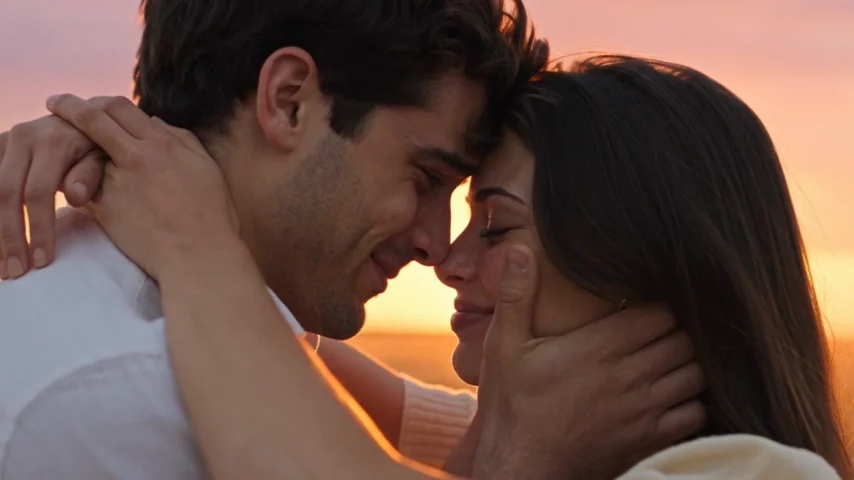 THE MEMORY
Give the same character a recognizable infected appearance in the present and a healthy face in the memory. The prompt below is a separate teaching example; it does not reproduce this sample exactly. From the AI Zombie example film. Your faces, motion and timing can differ.
Attach the portraits; naming them is not enough
Use a video tool that accepts two identity references. Attach the pictures using its reference controls and map Reference A to the adult who turns, Reference B to the adult who stays human. Writing “Reference A” in a prompt does not upload a photograph.
Different tools may treat two images as a first and last frame rather than two character references. Check that distinction before generating. If your tool cannot keep two independent identities, this prompt alone does not add that ability.
Keep the same portraits while revising a scene. Changing both the reference and the movement instruction makes it difficult to tell why the result changed. Clear, separate portraits also give you a more useful basis for comparing the output.
Prepare two portraits for character referencesRead the prompt as four decisions
The reference block assigns identities. The present block establishes recognition. The contact block defines the movement that bridges the scenes. The memory block explains that both people are healthy because it is an earlier moment, rather than a cure.
Give the contact instructions more attention than decorative adjectives. “Cinematic and emotional” describes a mood; “B on the left, A moving right to left, cut at first contact” describes an action a viewer can follow. Camera height and arm placement make that instruction more specific.
- Keep A and B assigned to the same people throughout.
- Describe the contact pose and direction on both sides of the cut.
- Make the memory a distinct earlier setting with both people healthy.
- Reserve enough of the clip for the final embrace to settle.
Change the instruction that solves your problem
If the faces swap, revisit the reference mapping before rewriting the location. If the memory still looks infected, clarify the healthy appearance and earlier timeline. If the approach reverses, repeat the left-right positions and movement direction in both scene descriptions.
You can change the setting in a manual tool, but keep the handoff readable. A new background, wardrobe, camera angle and cast all at once create several possible causes for a broken transition. Revise one meaningful detail, then compare it with the previous take.
The example plans a 15-second film. Set duration and orientation in your tool's actual controls where available. If it supports shorter clips, simplify the action or plan separate compatible shots. Prompt text cannot override a tool's duration or reference limits.
Compare the contact frames and diagnose a broken cutChoose the workflow that fits your story
Use the teaching prompt when you want to direct a compatible video tool yourself. Expect to review the result and possibly revise it. Each service has its own controls and generation costs; free access to this text does not include free video generation elsewhere.
Use AI Zombie's generator when you want our prepared two-person story. You choose the portraits, roles and frame, then confirm a paid video credit. It does not accept the copied prompt, a custom location or separate scene instructions.
After either workflow, review the identities, hands, transition and sound before adding captions. Instructions can reduce ambiguity, but they do not guarantee exact likeness, natural anatomy or a perfect cut.
Create the prepared love story from your photosUsing the zombie AI video editing prompt
Is this the exact prompt used by your generator?
No. It is an original teaching example for a manual workflow. The on-site generator uses its own prepared story, and output from another tool may differ.
Can I copy the zombie AI video editing prompt for free?
Yes. Reading and copying this text is free. Generating a video here requires a paid credit; another tool's generation charges and conditions are separate.
Does the prompt include a particular trending song?
No. It asks for original instrumental music and ambience. Add music you have permission to use during the finishing edit if you want a different track.
Can I use it with only one reference image?
This example is designed for two distinct adult identities. A tool with one identity slot may not support that story reliably; changing the words does not create a second reference slot.