CapCut zombie templates arrange supplied media using preset timing and effects. Two clip slots do not guarantee a complete animated reunion from two portraits. Generate the fictional story first if you need moving scenes, then finish the MP4 in CapCut.
Looking for an AI zombie CapCut template for the emotional zombie-hug trend? You have two choices. Use a CapCut preset to arrange photos or video clips in a ready-made edit, or create the full fictional reunion with two portraits and finish it in CapCut afterward. Those workflows are not interchangeable: a preset may add transitions, timing and music, but it does not necessarily invent the moving story between your characters.
If you want the encounter, embrace and warm-memory ending without building the scenes yourself, start with the tool above.
FROM OUR AI ZOMBIE EXAMPLE FILM
One story. A colder present. A warmer memory.
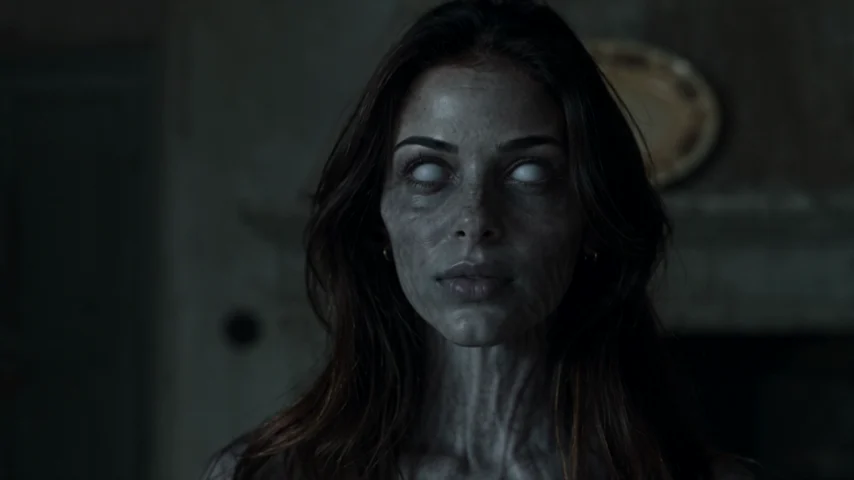 THE ENCOUNTER
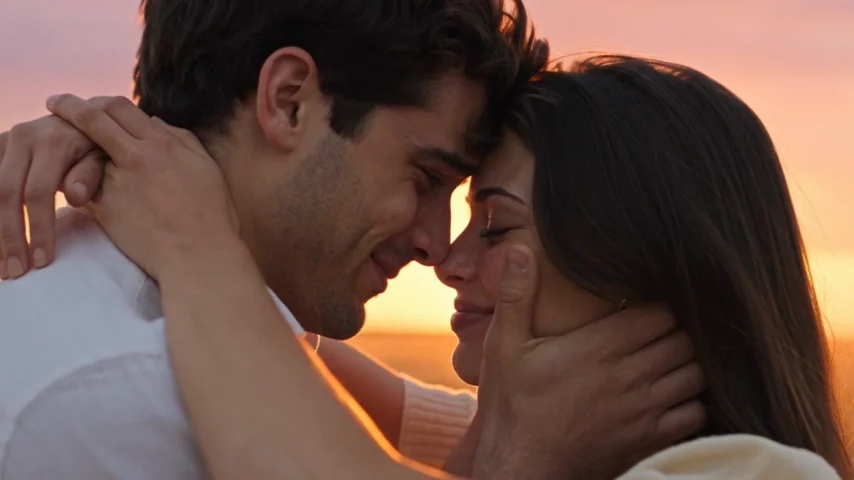 THE MEMORY
These are frames from our AI Zombie example, not results from CapCut or Dreamina. Faces, motion and timing can vary.
What Is an AI Zombie CapCut Template?
An AI zombie CapCut template is a reusable edit with preset clip positions, music, effects or cuts. You replace example media with your own. Some zombie presets focus on a frightening transformation; others are dramatic edits with zombie-related visuals. A title alone does not reveal whether a template includes two recognizable people, an embrace and a flashback.
The newer zombie love story has a more specific arc. One adult recognizes another after an imagined apocalypse. Fear gives way to affection; as they embrace, the video cuts to an earlier, happier moment. The emotional payoff comes from the same two people continuing one gesture across different worlds, not merely from zombie makeup.
If you expect an AI zombie CapCut template to animate two selfies into that full film, check a sample first. A preset that assembles existing clips may not generate the story itself.
How to Find and Use an AI Zombie CapCut Template
- Open CapCut's Templates area. On mobile, you can also follow a template link attached to a TikTok video. Entry points vary by app version and region.
- Search precisely. Try AI zombie, couple zombie, zombie love story, or zombie hug. Results may include unrelated Halloween edits.
- Watch the full preview. Look for two people, a moment of recognition and a change to a warm memory, not just a filter.
- Check the required media. Two clip slots mean the edit expects two pieces of media. They do not promise that two portrait photos will become moving characters.
- Select “Use template.” Add the requested clips or photos in order. If the template expects moving footage, a static picture may not produce the action you imagined.
- Review before exporting. Inspect faces, crops, sound, timing and any text. Export only if the result tells the intended story.
CapCut explains the general process in its official template help guide. Specific controls and available templates can change.
How to Make the Full Story Without Finding a Matching Preset
If no AI zombie CapCut template matches your idea, use the generator above to create the story first. It starts from one clear portrait for each consenting adult, without zombie makeup or pre-edited video.
Step 1 — Cast the roles. Put the adult who becomes infected in The one who turns and the human in The one who stays. Use photos with visible faces. Both people must authorize their use.
Step 2 — Pick a format. Choose 9:16 for a vertical feed or 16:9 for a wider video. The generated story is 15 seconds long with music and ambience.
Step 3 — Check the credits. At the current published rates, 480p costs 25 credits and 720p costs 50 credits per video. One-time packs are available; there is no free generation trial. Confirming starts the job.
Step 4 — Download and review. Watch both faces and the embrace. Download the MP4 from My videos during its 30-day availability period. A new generation uses credits again.
This is a prepared fictional story, not a custom CapCut editor. You cannot set an exact cut frame, regenerate one scene independently or change the script here. For those controls, use a video model and editor separately.
How to Finish Your AI Zombie Video in CapCut
Open a new CapCut project and import the finished MP4 instead of squeezing it into a short two-slot template. Save an untouched copy first; a careless trim may remove the ending.
If useful, add one short caption: “I would still recognize you” or “Before the world changed.” Keep text away from faces. If you use audio from a social post, check attribution and usage rights, and lower the video's existing soundtrack to avoid competing music. There is no single required song.
For footage you generated scene by scene, connect the cold encounter and warm memory at a shared gesture: meeting hands, turning shoulders or the beginning of a hug. A hard cut often reads more clearly than a long dissolve. Let the motion determine the cut rather than forcing an arbitrary second mark.
Use Cases: Which Approach Fits Your Video?
A quick Halloween effect. A simple CapCut zombie filter may be enough when you want an appearance change, not a two-person story.
A couple's emotional reunion. Use a two-person film workflow. A filter alone cannot create the recognition, embrace and earlier memory that give this version its meaning.
A tribute to an adult friend or family member. Obtain both adults' permission, keep the tone gentle and disclose that the scene is fictional rather than real footage.
Your own dialogue or elaborate shot list. Choose a separate prompt-based video model and edit its clips in CapCut. This page's generator is intentionally simpler. For a manual example, see our Dreamina walkthrough.
Why Some Zombie Templates Disappoint
A preset titled Zombie AI might apply a face effect or arrange existing footage rather than generate new action. Preview it and check its media slots before exporting. With AI-generated scenes, also watch for inconsistent faces, tangled arms and bad vertical crops. CapCut can adjust timing and overlays, but it cannot reliably repair a different-looking person or a broken embrace. Those issues usually need better source footage.
Official guides and template listings
These official pages describe the available controls and template requirements. Our tutorial is an independent workflow; the example frames on this page come from AI Zombie.
FAQ About AI Zombie CapCut Templates
Is there an official AI zombie CapCut template for the entire love story?
CapCut hosts zombie-themed templates, including the examples above. We have not verified a single official preset that creates the complete 2026 reunion-and-memory story from two portraits. Inspect current previews before assuming it will.
Can I use an AI zombie CapCut template with only two photos?
That depends on its media requirements. Two clip slots do not mean it can animate two portraits into a whole film. For a new moving story from portraits, use the generator above.
Is an AI zombie CapCut template free?
Some CapCut templates can be used without payment, but features, assets or exports may be restricted. Check the exact template. Our AI Zombie generator requires paid credits; viewing examples and creating an account do not include a free render.
Do I need CapCut after generating a video here?
No. Your 15-second MP4 comes with generated scenes and sound. CapCut is optional for captions, licensed music or a careful finishing trim.
Why doesn't the result look exactly like our photos?
Portraits guide AI-generated characters but cannot guarantee exact identity. Choose clear adult faces and check both scenes before sharing. Editing cannot fix serious identity drift.
Can I use a pet or child instead?
Not with this generator. It supports authorized portraits of two adults, not pets or children.