Make the zombie hug trend in Dreamina as two separate shots: a cold encounter and a warm memory with the same two adults. Match their embrace and screen positions, then join the clips with a hard cut in CapCut. This manual workflow is separate from the prepared AI Zombie generator.
Trying to make the AI zombie trend in Dreamina? The challenge is not giving someone pale zombie makeup. It is keeping the same two people recognizable as a tense encounter turns into an embrace and then a happier memory. Dreamina's Seedance models give you control over visual references and motion prompts, while a separate editor helps you decide exactly where the memory begins.
If you would rather skip the prompt-writing and editing, the tool above makes our prepared, fictional 15-second story from two authorized adult portraits. For a custom shot list, continue to the Dreamina tutorial beneath it.
FROM OUR AI ZOMBIE EXAMPLE FILM
One story. A colder present. A warmer memory.
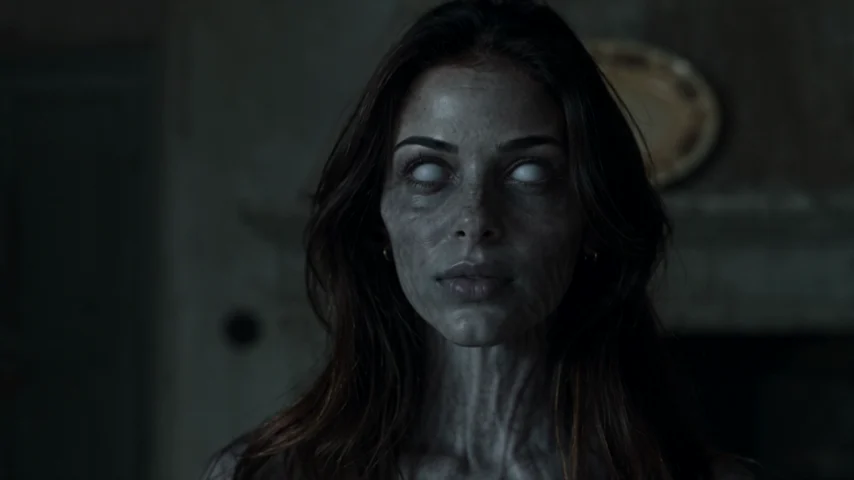 THE ENCOUNTER
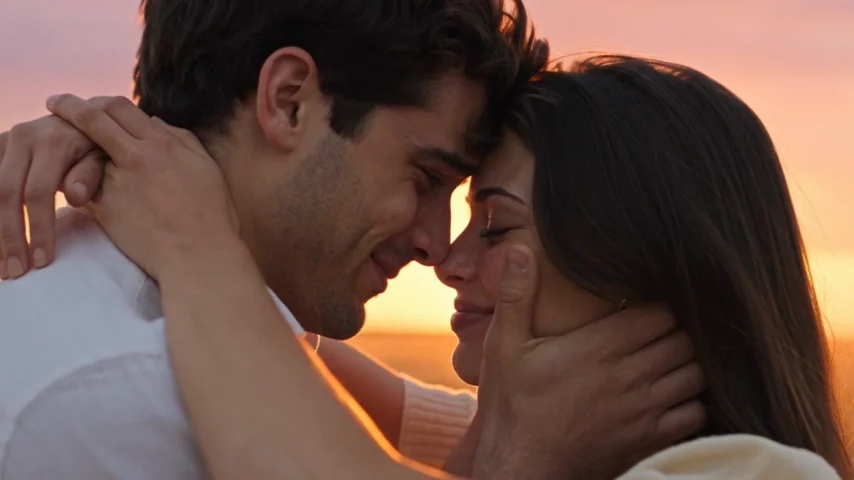 THE MEMORY
These are frames from our AI Zombie example, not results from CapCut or Dreamina. Faces, motion and timing can vary.
What Is the AI Zombie Trend in Dreamina?
The format has two visual worlds. First, an adult recognizes a loved one who has become a zombie. The setting is cold and uncertain, but they move into an embrace rather than an attack. Next, the same adults appear healthy in an earlier, sunlit memory. The contrast works when the gesture carries across the cut.
Dreamina is an AI creation service in the CapCut ecosystem. Its Seedance video models can animate reference images using motion prompts. That makes Dreamina useful for generating the shots, while CapCut helps trim footage and choose the exact memory cut. They are separate workflows.
You do not need to recreate somebody else's clip exactly. Two recognizable characters and one connecting movement are enough to tell an original story.
Prepare Two Scenes Before You Generate
Plan a longer cold encounter followed by a shorter warm memory, making a final edit of approximately 15 seconds. Actual generation lengths depend on the options in your Dreamina account.
Prepare a starting image for each scene in the same aspect ratio. Keep the human on the same side, show a recognizable accessory and leave room for arms and shoulders. An optional ending frame can guide the cold shot toward a particular embrace pose. Don't use the warm memory as that shot's last frame if you want a hard cut: the model may generate a gradual transformation instead.
Use reference photos only with permission from both adults. Get consent before uploading or sharing their likenesses.
AI Zombie Trend Dreamina Tutorial: Make Two Scenes
1. Open AI Video and select an image-based mode
Open Dreamina and choose AI Video. Select a Seedance model and an input mode that accepts your available reference images. Dreamina documents image-to-video, first-and-last-frame and multimodal workflows; not every model exposes identical controls.
Choose 9:16 for a vertical video when supported. Check the model, duration, resolution and credit charge displayed in your account before generating. Trial allowances and settings may differ.
2. Prepare the cold encounter
Use an image of two consenting adults or create a fictional image guided by their authorized portraits. Place the human on screen left and the changed adult on the right in a deserted street. Keep the zombie look non-graphic: pale skin, tired eyes and intact clothing. Leave space to see both faces and arms.
3. Copy the cold-scene Dreamina prompt
Free to copy. Video generation is separate.
Review the whole generated clip. If arms overlap or the characters swap sides, simplify the action to a single step, reaching hands and a pause. Test one change at a time.
4. Generate the warm-memory clip separately
Prepare another starting image of the same two adults, both healthy, in a matching pose. Change the location and lighting, but retain their screen positions and camera distance. Paste:
Free to copy. Video generation is separate.
Compare the two clips at the intended cut. Different scenery is desirable; different-looking people or reversed arms are not.
5. Cut the scenes together in CapCut
Import the encounter first and the memory second. Trim to nearby embrace poses and use a hard cut rather than a slow dissolve. If available clip lengths permit, try roughly ten seconds of encounter and five of memory; prioritize continuity over exact timing.
Keep faces free of captions. If you add music, check its usage rights and adjust the existing audio. Export in the source orientation rather than stretching a horizontal video vertically.
6. Review the finished film
Replay the last moments of the first clip against the first moments of the second. Compare faces, screen direction, shoulder height and hands. Watch the entire video with sound, then muted. The story should remain understandable without explanatory text.
First-and-Last Frames: When They Help and When They Don't
Dreamina's first-and-last-frame guide describes how two images can anchor the beginning and end of a single generated shot. Use this to guide the cold encounter toward a clear embrace pose.
Avoid using a sunny flashback as the last frame of the zombie encounter when you want an abrupt memory cut. Generation may interpolate between the two looks. Produce separate clips and place that edit yourself. Input options vary by Seedance model.
What to Fix if the Dreamina Version Looks Wrong
The two scenes look like different people. Reuse the same authorized reference images. Keep faces readable and repeat a distinctive clothing detail. Avoid changing the camera angle and lighting and the cast at once.
The hug has extra arms. Reduce simultaneous movement and keep the camera steady. Begin closer to the desired contact pose.
The memory change looks like a fade. Remove automatic transitions in CapCut; connect compatible gestures with a direct cut.
You are spending credits without progress. Test one short shot, change one variable per revision and check the displayed cost each time. No prompt guarantees a perfect result.
Use Cases: Who Is This Approach For?
Couples: Choose a meaningful setting or a familiar accessory; keep the story fictional and the zombie appearance restrained.
Adult friends: Make the embrace a relieved, slightly awkward reunion instead of a romantic moment.
Hands-on creators: Choose Dreamina when you want specific shots, camera moves or locations. Choose our prepared generator above when you want a 15-second story without composing prompts or editing clips.
Official guides and template listings
These official pages describe the available controls and template requirements. Our tutorial is an independent workflow; the example frames on this page come from AI Zombie.
AI Zombie Trend Dreamina FAQ
Can Dreamina create the AI zombie trend from my photos?
Yes, it offers image-to-video and reference-based generation. Use photos you are allowed to upload, but expect to check identity consistency and the cut between scenes.
Do I need Seedance 2.5 for the AI zombie trend in Dreamina?
No specific version is mandatory. Choose a model that accepts your image references, aspect ratio and intended duration. Availability varies by account.
Can I make the whole 15-second video in one generation?
Some models support longer clips, but precise scene changes are harder to control in a single take. Two shots plus an edit allow a more deliberate memory cut.
Is Dreamina free for zombie videos?
Dreamina has advertised trial credits, but eligibility, model access and generation prices vary. Confirm the terms in your account. Our generator here separately requires paid credits.
Can I paste these prompts into the generator above?
No. This site's tool uses a fixed fictional narrative. You choose two adult portraits, roles, orientation and quality, not a custom script. Use Dreamina for prompt control.
Can I use pets or children on this site?
No. Our generator supports two consenting adults only. Follow the separate policies of any external service and identify shared results as AI-generated.