Make your video
How to Make an AI Zombie Video from Two Photos
In this article
To make an AI zombie video with AI Zombie, upload one portrait of each adult, choose who becomes the zombie, select a vertical or landscape format, and confirm generation using a video credit. You receive a 15-second MP4 with sound, built around a reunion and a warm memory. You do not need to write a prompt or assemble the scenes in a video editor.
This guide walks through our two-person generator. It requires two photos and a paid video pack; creating an account is free, but video generation is not.
See the kind of story you are making
The story follows two people who still recognize each other after one has become a zombie. Its emotional turn comes from the reunion and the contrast with a happier memory. That makes it suitable for a fictional zombie love story involving consenting adults, including partners or friends.
AI Zombie's public example film. This is an existing product example, not a new generation made for this tutorial. Your faces, clothing, movement, and scene details can differ.
Watch the example before buying. If you want to direct a long zombie apocalypse movie, write dialogue, or choose every camera move, this preset story is unlikely to give you the control you need. Here, your main choices are the two people, their roles, and the video's format.
Prepare two usable portraits
Choose one clear photo of each adult. Both people must agree to have their photos used in the video, and the person operating the generator must be at least 18.
The uploader accepts JPG, PNG, and WebP files up to 8 MB each. A supported file extension matters: renaming an unsupported file does not convert it. If necessary, export a copy as JPG or PNG using an image editor before uploading.
Prefer a photo where the whole face is visible, with good lighting and no sunglasses or face covering. Avoid group shots, because the intended person should be unambiguous. You do not need a photograph of both people standing together; the tool has a separate upload slot for each person.
Keep the original files handy until you have checked the finished video. Clearer references can make the intended identity easier to communicate, but they cannot guarantee an exact likeness. AI may change facial details, clothing, and movement even when the source portrait is sharp.
How to make your AI zombie video
1. Open the generator and sign in
Open the AI Zombie generator. Select Add a photo in an upload box. If you are signed out, the site asks you to sign in before uploading.
Complete the sign-in flow offered on the screen, then return to the generator. Use the same account throughout: your video balance and finished stories belong to that account. Signing in by itself does not start a generation.
2. Put each photo in the correct role
The two upload slots are labeled:
- The one who turns: the adult who becomes the zombie.
- The one who stays: the adult who remains human.
Add the matching portrait to each slot and wait for both previews to appear. Check the faces before continuing. If you have assigned them the wrong way round, use Swap roles between the uploads. To use a different portrait, select Change photo on that image.
For example, if you want your partner to become the zombie and yourself to remain human, your partner's portrait belongs under The one who turns. The choice is about the fictional role, not the order in which you selected the files.
3. Choose the video's shape and confirm permission
Under Video format, choose 9:16 Vertical for a tall composition or 16:9 Landscape for a wide one. A vertical frame suits viewing on a phone; landscape gives you a horizontal composition. Choose according to where you intend to show the finished clip.
The story is 15 seconds long and includes sound. Use the settings displayed in the generator as the final reference for any additional options available to your account.
Read and select the permission checkbox confirming that both adults agreed to use their photos. If you replace or swap the photos, check the consent state again before continuing. This is also a good moment to recheck which person turns.
4. Choose a video pack if you need credits
If your balance is empty, the main action changes to Choose a Video Pack. The listed one-time packs are:
| Pack | Videos | Listed price | Price per video |
|---|---|---|---|
| Starter | 1 | $9.90 | $9.90 |
| Popular | 3 | $24.90 | $8.30 |
| Creator | 5 | $39.90 | $7.98 |
Prices are in USD, checked October 10, 2026. Review the amount and any applicable taxes shown before payment. These are one-time purchases, with no subscription or automatic renewal. See current pricing.
Choose based on the number of versions you actually want. The five-video pack has a lower price per video but a higher upfront payment. You do not need to buy several attempts just to watch or download one completed result.
After payment, return to your photos and click Generate. Buying a pack and starting the video are separate actions.
5. Confirm generation once
With both photos, permission, and an available credit, select Generate Video — Uses 1 Video and review the confirmation before starting.
The generator then shows the video's progress. Once the task has started, you can leave the page and return to My videos using the same account. The site reports the task's current stage rather than a guaranteed finish time.
If progress takes longer than expected, check the existing task before starting anything else. A slow or delayed task is not necessarily a failed one. Submitting another version can create another charge against your video balance.
6. Review the result and download the MP4
Open My videos. When the video is ready, play it with sound and use Download MP4 to save a copy.
Before sharing, watch the whole clip rather than checking only the opening frame. Confirm that the intended person is the zombie, both people remain recognizable enough for your purpose, and the reunion and memory make sense. Check the embrace, hands, and faces during movement, where a still image may hide an awkward change.
Finished videos are available for 30 days unless deleted sooner. Save your file before its expiry date. Replaying, refreshing, or downloading an existing video does not use another credit.
What the encounter and memory should communicate
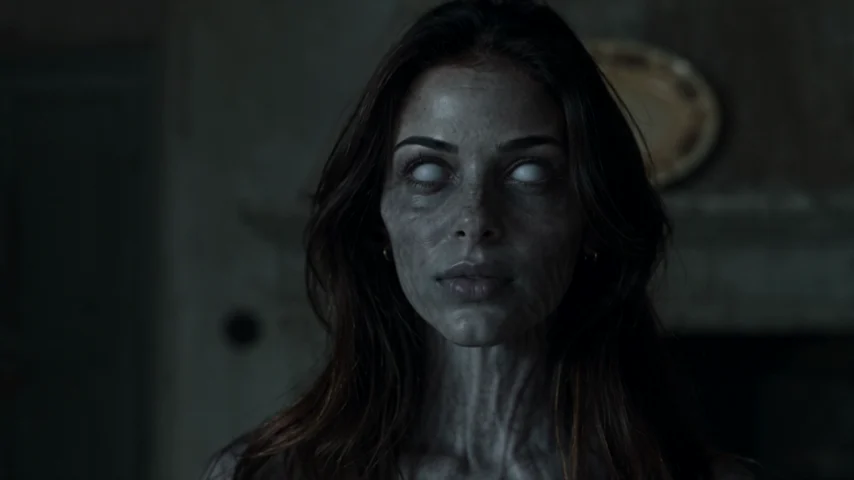
The encounter introduces the changed person and the tension of recognizing them.
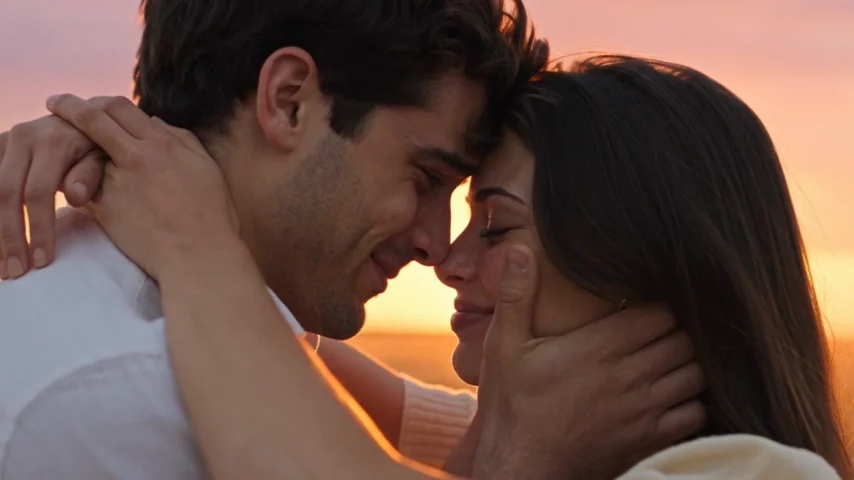
The memory changes the mood while keeping the relationship at the center of the story. Both images are frames from the site's existing example film.
Use these moments to judge your own result. A convincing story needs more than zombie makeup: the viewer should understand who the two people are and why the reunion matters. If the identities appear to switch or the ending introduces a different-looking person, the narrative can become confusing even when individual frames look attractive.
If something goes wrong
| What you see | What to do next |
|---|---|
| The photo will not upload | Check the file format and 8 MB limit. Export a supported copy if needed, then try that file. |
| The wrong person is assigned to turn | Correct the roles before generation. Check the permission checkbox again after swapping. |
| You bought a pack but no video started | Return to the generator, confirm the photos and permission, then select Generate. |
| Your task is still processing or delayed | Check the existing video in My videos. Do not submit a duplicate simply because it is taking longer. |
| The task is marked failed | A confirmed generation failure returns one video to your balance. This is a credit return, not a cash refund. |
| The completed video has a serious identity problem | Contact support with the Video ID. An unwanted creative result and a technical generation failure are different cases. |
If you decide to create another version, it uses another video credit and requires confirmation. Read the Refund Policy before purchasing if refund conditions affect your decision.
Other questions before you start
Do I need CapCut or editing experience?
No. The generator produces the story as a complete MP4 with sound. You may edit the downloaded file afterward, but assembling separate scenes is not required for this workflow.
Can I change the music or rewrite the story in the generator?
The workflow described here is a preset story, not a timeline editor. It does not offer a custom dialogue script or a music-track picker. If you need precise sound changes, work on the downloaded video in an editor.
What happens to my uploaded photos?
Unsubmitted drafts expire after 24 hours. Source photos are removed from active storage within 24 hours of a task ending. See the Privacy Policy for the full handling details.
Make your two-photo story
Choose the two portraits, agree on who turns, and watch the example once before buying a pack. Those decisions give you a clear starting point for your AI zombie video without needing to plan every scene.