What Makes This a Halloween Zombie Video?
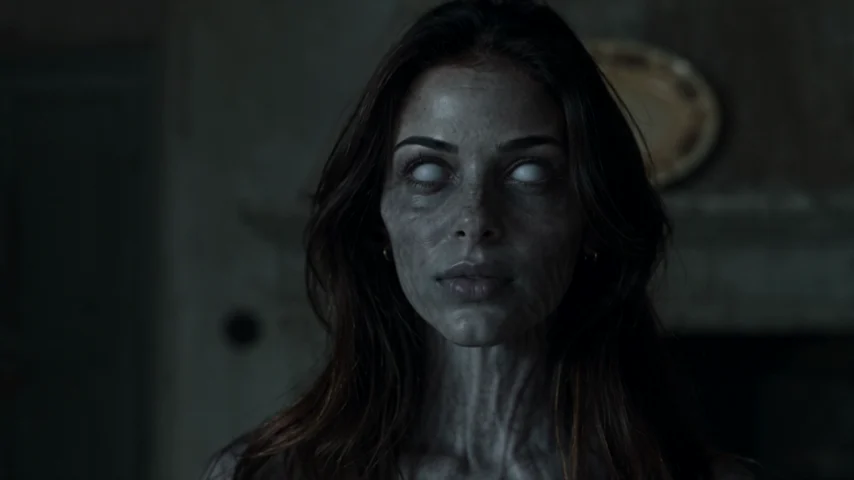
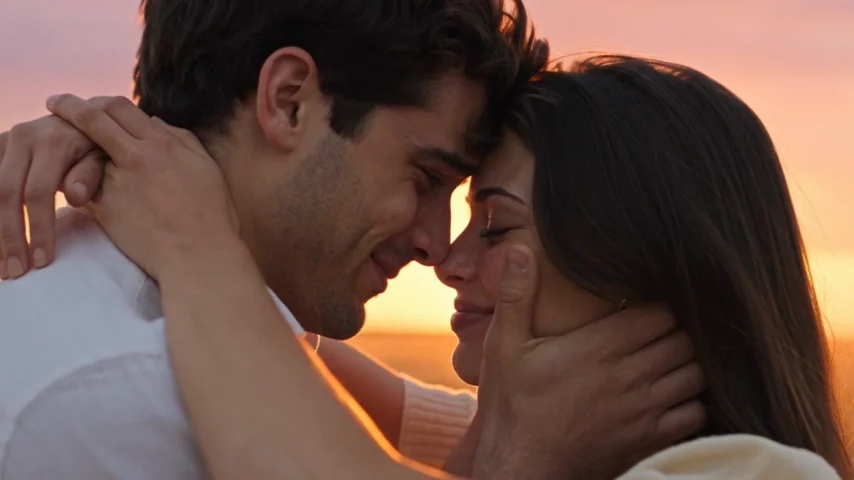
Most Halloween clips rely on a sudden reveal: a mask comes off, the lighting changes, or someone leaps into frame. This one has a different rhythm. It starts with the unsettling sight of a familiar person who has changed. Then recognition interrupts the fear. The story moves toward an embrace and a sunlit memory of the two people before everything went wrong.
That contrast—cold present, warm past—gives the clip a reason to be watched through to the end. It also makes a Halloween zombie video suitable for people who like spooky imagery but don't want blood, biting, or graphic injuries. The zombie styling in AI Zombie is restrained, and the emotional connection is the point.
It's a prepared story rather than an open-ended horror-film maker. You cannot choose a haunted castle, add a pumpkin to the generated background, or write a completely new plot inside the generator. You can choose the two adults, assign their roles, and decide how to present the finished film when you share it.
How to Make a Halloween Zombie Video in Four Steps
1. Pick two photos with recognizable faces
Choose one portrait per adult. Look for reasonably even lighting, an unobstructed face, and a natural expression. Photos taken on different days are fine; you don't need a photograph of both people together. Use JPG, PNG, or WebP, up to 8 MB per image. Avoid sunglasses, heavy face filters, crowded group shots, and photos where someone is mostly turned away.
2. Give each person a part in the story
Place the person who becomes the zombie in “The one who turns.” Put the other person in “The one who stays.” These labels—not gender, clothing, or upload order elsewhere on the internet—determine the roles on this site. If you're making a Halloween zombie video with your partner, decide together which part feels right. With a close friend or an adult sibling, the same sequence can tell a story about loyalty instead of romance.
3. Choose format and resolution
Use 9:16 for a vertical post on TikTok, Reels, or Shorts, or 16:9 if you want a landscape version for a larger screen. Every generation produces a 15-second MP4 with music and ambience. Standard 480p uses 25 credits; 720p HD uses 50 credits. You can review the cost before creating the video. A separate generation uses credits again, even if you keep the same photographs.
4. Review, download, and make the post yours
Sign in, confirm both adults' permission, and start the generation. Follow its status in My videos. When it's ready, watch the whole clip before sharing; AI-generated facial details, clothing, and motion can vary. Download the MP4 within the site's 30-day video-storage period. You can post it as-is, or add an opening caption and a Halloween-themed end card in your usual video editor.
Three Ways to Give the Same Story a Halloween Twist
The couple reunion. Make one partner the transformed character and the other the person who refuses to turn away. A caption such as “Still choosing you, even after the apocalypse” makes the romantic idea clear without explaining every shot. For more relationship-specific ideas, visit Halloween couple video ideas.
The best-friend promise. Cast two close adult friends and use the text “When your bestie says they'll always have your back.” The video follows the same encounter-and-memory arc; the meaning comes from the people and the words you add around it. This works especially well when your friendship has a long history that viewers already know.
The before-and-after Halloween post. Start with a real photo of the two of you getting ready for October 31, then cut to the generated film. After the warm memory, return to your real photo. Those bookend images are optional editing additions—not scenes or transitions that the AI Zombie generator creates on request.
These aren't three separate effects in the tool. They are three ways to use its one recognizable storyline, which keeps the result honest and the production simple.
Make Your Halloween Zombie Video Work on Social Media
A short film can be more effective with a little context than with an enormous block of hashtags. Consider putting one readable sentence on screen before the first scene: “POV: It's Halloween and you recognize the last person you expected.” Let the story play, then finish with a simple personal line.
For a vertical post, choose 9:16 at generation time rather than cropping a wide version afterward. Keep text away from the extreme top and bottom, where app controls may cover it. The downloaded film already includes sound, so listen before layering additional music. If you use another soundtrack, make sure you have the rights to use it on the platform where you're posting.
Mark realistic AI-created footage appropriately when publishing. In particular, TikTok and YouTube have AI-content disclosure requirements for qualifying realistic synthetic media. A straightforward note like “AI-generated Halloween short film” also helps friends understand that the scene is fiction, not a real incident.
Halloween Zombie Video FAQ
Can I create a Halloween zombie video without makeup or costumes?
Yes. Ordinary, clear portraits are enough to provide references for the two adult characters. The zombie appearance and cinematic surroundings are generated as part of the prepared story. A costume photo is optional, but specific clothing may change in the result.
Is the Halloween zombie video generator free?
The website lets you learn about the effect and view examples, but generating a finished MP4 requires paid credits. A 15-second Standard video uses 25 credits, while 720p HD uses 50. Check the current credit packs and the confirmation screen before paying; purchased credits do not expire.
Can I make the video with a friend instead of a romantic partner?
Yes. Use any two consenting adults, such as close friends or adult family members. The same fictional reunion plays out, and a friendship-themed caption can establish your intended relationship for viewers.
Can I change the haunted setting, plot, or length?
Not in this generator. It creates a fixed 15-second encounter-and-memory storyline. To add pumpkins, Halloween titles, a personal introduction, or a different ending card, edit the downloaded MP4 in another app.
Will the AI keep our faces exactly the same?
Not necessarily. Your photos guide the characters, but AI may alter facial features, clothes, expressions, or movement. Start with clear, unobstructed portraits and inspect the result before sharing it.
Can I use a child or someone else's photo?
Only portraits of consenting adults aged 18 or older may be used. You must have permission to use both photographs and to depict both people in the fictional video. Don't upload a child's image or an adult's photo without their agreement.
How long can I keep my finished video?
Finished videos are available in My videos for 30 days unless deleted earlier. Download your MP4 before that period ends. Source-photo and draft retention are explained in the site's Privacy Policy.